
Offer payment plans
Set up payment schedules members can pick from, let members propose their own plans, and propose plans to one member or everyone with a balance.
There are three ways to offer payment plans in the web app: set up payment schedules members can enroll in, let members propose custom plans, or propose a plan to members yourself. You can use any mix of them. For how plans run once they start, see How payment plans work.
Before you start
- Payment schedules: you need the Manage Payment Plan Templates permission. With only View Payment Plan Templates, the button reads View Schedules and you can't make changes.
- Allow custom plans: you need Update Charge Types.
- Proposing plans: you need Manage Payment Plans.
- If a charge type pays out to a separate payout account, you also need access to that account to change its schedules or propose plans on it.
See Permissions for what each permission covers.
Set up a payment schedule
A payment schedule is a ready-made plan with set payment dates. Members who enroll in one are approved right away; you don't review them.
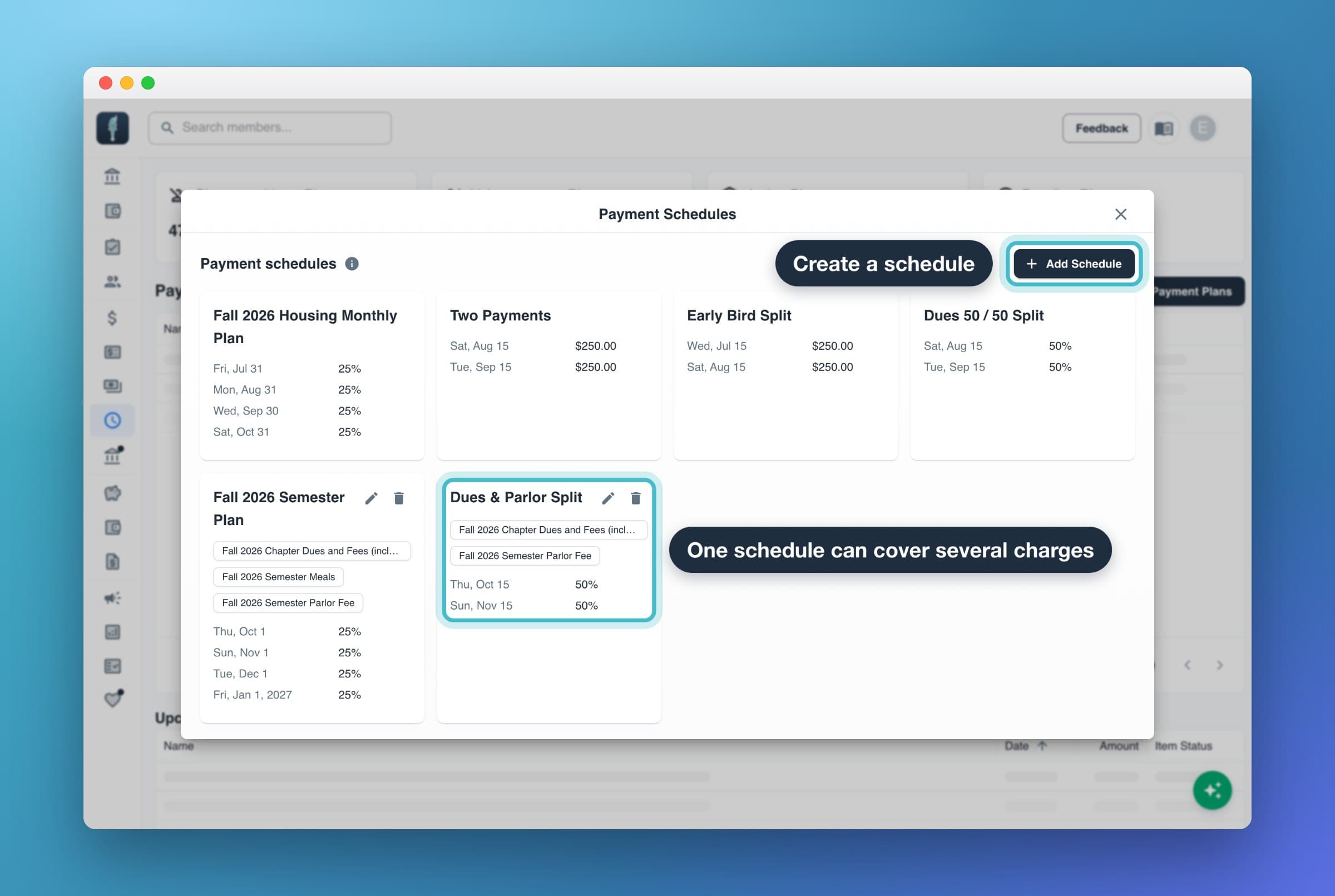
Go to Payment Plans and select Manage Schedules. Or open a charge type and go to its Payment Plans tab, which shows only that charge type's schedules.
Select Create First Schedule (or Add Schedule if you already have some).
Enter a Schedule Name, for example "Fall 2026 Dues Payment Plan". Members see this name.
Under Charge Types, pick the charge type or types it covers. From a charge type's page, it's already filled in.
Choose what happens If a member enrolls after a payment date has passed (see Late enrollment in a payment schedule).
Under Payment Schedule, choose % or $, then set a date and amount for payment #1. Select Add Payment for each further payment (up to 52).
Check the Total, then select Create.
Each payment needs a date and an amount above zero, and no two payments can share a date.
Percent or dollar amounts in a payment schedule
- % sets each payment as a share of the charge. Use it when members are billed different amounts. If the percentages don't add up to 100%, you'll see a warning.
- $ sets a fixed dollar amount for each payment. Use it when everyone owes the same.
Either way, a member's plan always adds up to exactly what they still owe:
- If they've already paid part of the charge, that payment counts toward the earliest payments in the schedule first.
- If the schedule adds up to more than they owe, the last payments are made smaller or dropped.
- If it adds up to less, the rest is added to the last payment.
Members see their exact amounts before they confirm.
Late enrollment in a payment schedule
Each schedule has a setting for members who enroll after one of its payment dates has passed:
- Catch up the next morning (the default): the missed payments are combined into one catch-up payment, charged on the next daily billing run. Later payments keep their dates. Members see it marked Catch-up before they enroll.
- Don't allow enrollment: once a payment date has passed, members can't enroll in this schedule unless they've already paid that part of their balance. The schedule's card shows a Hard deadline tag.
Use Don't allow enrollment when payments must be in by fixed dates, for example a deposit.
Payment schedules that cover several charge types
Pick more than one charge type to make one schedule cover them together, for example dues and a house fee. The member gets one plan with one payment method, and each payment is split across the charges. In $ mode, the amounts are for all the charges combined.
When you pick more than one, choose who sees the schedule under Offer this plan to members billed for:
- All of these charges: only members billed for every charge type in it.
- Any of these charges: members billed for at least one of them.
Edit or delete a payment schedule
On the schedule's card, select the pencil icon to edit it or the trash icon to delete it.
- Changes apply only to members who enroll afterward. Plans members already have keep their dates and amounts.
- Deleting a schedule hides it from members. Existing payment plans stay active.
- You can only edit or delete a schedule if you have access to the payout account of every charge type it covers.
How members find payment schedules
A member sees a schedule when they have a charge it covers that still has a balance and isn't already on an approved plan. They pick it from Enroll in Payment Plan on My Balance in the web app, Set Up Payment Plan in the mobile app, or at pay.mygreek.us if a parent pays. They choose a payment method and the plan is approved immediately. Nothing is charged until the first payment date.
If a member had a plan waiting for approval on that charge, enrolling in a schedule replaces it. The member's steps are in Set up a payment plan.
Let members propose custom plans
A custom plan is one the member builds: an amount per payment, how often, and a start date.
Open the charge type and go to its Payment Plans tab.
Turn Allow custom plans on or off. It saves right away. It's on by default for new charge types.
Custom plans need your approval before they start, unless they finish by an auto-approve date. Chapter admins see a calendar icon next to Allow custom plans to set one. See Approve or reject payment plans.
With Allow custom plans off and no payment schedule for the charge type, members can't put that charge on a plan.
Propose a payment plan to one member
Open the member's page and go to the Payment Plans tab.
Select Propose Plan and pick the charge.
Enter the amount per payment, then choose how often (every week up to every year) and the start date. The earliest start date is tomorrow.
Review the schedule. You can change dates and amounts, but they must add up to the balance.
Select Propose Plan.
This only lists charges whose charge type has Allow custom plans on. For another charge type, use Propose Payment Plans (below) and select just that member.
Propose payment plans to many members
Use this to offer the same plan to everyone who owes on one charge type.
Go to Payment Plans and select Propose Payment Plans. Or, on a charge type's Payment Plans tab, select Bulk Propose Plans.
Under Select a charge, pick the charge type.
Under Who should receive this plan?, choose All members with outstanding balance or Select specific members, then select Continue.
Choose how to split each balance:
- Fixed amount per payment: everyone pays the same amount (at least $0.50) each time until their balance is paid. The last payment is whatever is left.
- Fixed number of payments: each member's balance is divided by this number (1 to 52). Any leftover cents go on the last payment.
Next to Members will pay, pick how often and the start date, then select Continue.
Check how many members it will go to, then select Confirm & Send Proposals.
Members whose charge already has a plan, approved or waiting for approval, are skipped.
What happens after you propose a payment plan
- The member gets a "Payment Plan Proposed" email showing the schedule, plus an app notification. If your chapter has texting set up, they also get a text.
- The plan shows as Requires Member Approval. The member opens it, selects Continue, chooses their own payment method and accepts. It's then Approved, and payments start on the first payment date. They can also reject it.
- If the member doesn't accept before the first payment date, the plan expires that morning and nothing is charged. The member and your admins are emailed. Members aren't sent a reminder before then, so follow up with anyone who hasn't accepted.
- Until it's approved, a proposed plan doesn't protect the charge from late fees that skip members on a plan.
Common questions
Can I make a payment schedule for just one member?
No. A payment schedule is offered to every member billed for its charge types. Propose a plan to that member instead.
A member says they don't see any payment plan option.
The charge needs a payment schedule that covers it, or Allow custom plans turned on. If its schedule is set to Don't allow enrollment, a payment date may have passed.
How do I see who hasn't accepted my proposal?
In the Payment Plans table, plans still waiting on the member show Requires Member Approval.