
Run reports
Use the Aging report, the Balances report and Revenue by Charge Type to see who owes what and what you've collected.
Reports has three reports: the Aging Report (how far past due your chapter's money is), the Balances Report (members grouped by how much they owe) and Revenue by Charge Type (what you collected for each charge type). Officers with the View Reports permission can open them from Reports in the main menu on the web. Reports aren't in the mobile app.
Who can see Reports
The Reports menu item shows only for officers with the View Reports permission. Admins have every permission, and the Treasurer, Vice President and Secretary role templates include it. To give it to another officer, add View Reports to their role in My Chapter > Roles. See Permissions.
Anyone who can see Reports can run all three reports and export them. Only chapter admins can change the buckets the Aging and Balances reports use.
Aging report
The Aging report answers "who's furthest behind, and how much of what we're owed is overdue?" In Reports, select Aging Report.
Each row is a member who owes money. The columns split what they owe by how many days past the due date each charge is:
- Current: charges that aren't past due yet, including ones due today.
- One column per range from your chapter's buckets. The defaults give 1-30 Days, 31-60 Days and 61-90 Days.
- Over 90 Days (or over your last bucket): everything older.
- Total: everything the member owes.
Each bucket's number is where it ends, and that day is included. With the default buckets, a charge 30 days past due is in 1-30 Days, and one 31 days past due is in 31-60 Days. Days are counted in your chapter's time zone.
Each charge goes in one column, based on its own due date. A member with three unpaid charges can have money in three columns.
Use the report like this:
- Sort by any column. It opens sorted by Total, largest first. Sort by the oldest column to see who's furthest behind.
- Filter with Term (All terms, one term, or No term for charge types without a term) and Charge (All charges or one charge type). The report opens on All terms so the totals match everything the chapter is owed.
- Search Members by name.
- Select a member's name to open their page. A gavel icon means "This member is in collections". See Send a member to collections.
The TOTALS row adds up the members shown, so a search narrows it. The count under the table says how many members have outstanding balances.
Change the Aging report buckets
Chapter admins can change where the Aging report's columns split. The change applies to everyone in your chapter who views the report.
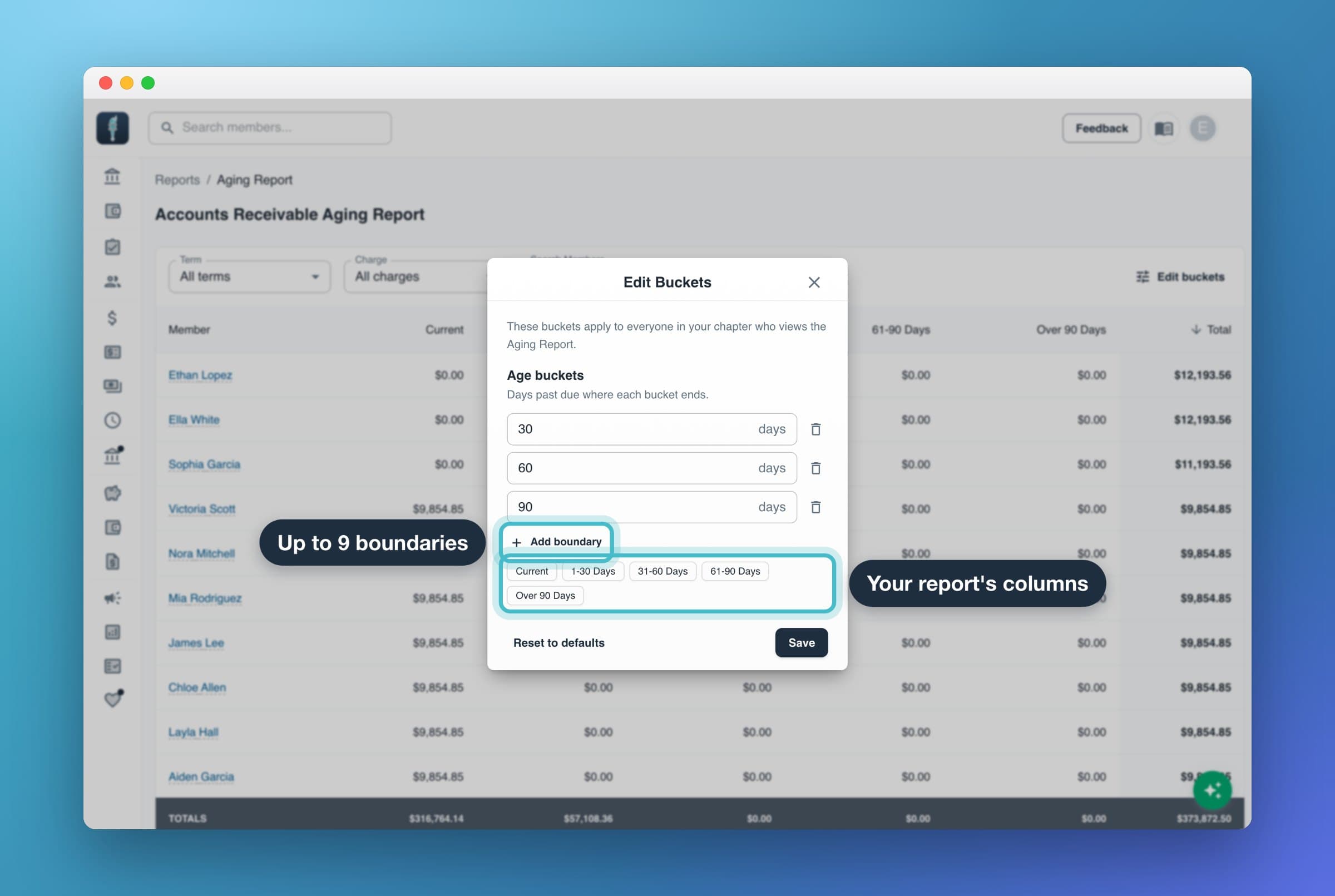
- In the Aging Report, select Edit buckets.
- Under Age buckets ("Days past due where each bucket ends"), type the day each bucket ends. Use Add boundary to add one, or the trash icon to remove one.
- Check the preview of column names under the list. For example, 15, 30 and 60 gives Current, 1-15 Days, 16-30 Days, 31-60 Days and Over 60 Days.
- Select Save.
The rules:
- 1 to 9 boundaries.
- Each one a positive whole number of days.
- Each bigger than the one before it.
If a boundary breaks a rule, the dialog says "Boundaries must be positive whole days in increasing order." and Save stays off. Reset to defaults puts back 30, 60 and 90 days.
Officers who aren't admins don't see Edit buckets. Ask a chapter admin to change them.
Balances report
The Balances report answers "how many members owe a lot, and how much is that?" In Reports, select Balances Report.
The top table groups members by their total balance, with a count (Members) and a sum (Outstanding) for each group. With the default buckets, the groups are:
- Zeroed: members who were billed but owe nothing now.
- Under $250
- $250 to $500, $500 to $750 and $750 to $1,000
- $1,000 and over
Each bucket's number is where it starts, and that amount is included. A member who owes exactly $500 is in $500 to $750.
The report counts members who were billed at least one charge that matches the filters. Members who were never billed (new members, for example) aren't in it, so Zeroed means "paid off". The TOTALS row adds up every group, so it equals the Aging report's total for the same filters (with no search).
Use the report like this:
- Select a group in the top table to list just those members below it. Select it again to see everyone with a balance.
- Filter with Term and Charge, the same as the Aging report.
- Search Members by name. The search narrows the member list, not the top table.
- Sort the member list by Member or Total.
Change the Balances report buckets
Chapter admins can select Edit buckets in the Balances report. Under Balance buckets ("Member balance where each bucket starts"), enter 1 to 9 dollar amounts, each positive and bigger than the one before. Reset to defaults puts back $250, $500, $750 and $1,000. The change applies to everyone in your chapter.
Revenue by Charge Type
Revenue by Charge Type answers "how much did we collect for each charge type this term?" In Reports, select Revenue by Charge Type.
Pick a date range at the top. It opens on your current term if today falls inside one. If not, the report stays empty until you pick a range or a shortcut (a term, This Week, This Month, Last Month or Year to Date).
For that range, three tiles and the table's columns show:
- Total Collected: payments plus credits.
- Total Online Payments: payments members made through MyGreek.
- Total Credited: credits, such as money an officer recorded as paid outside MyGreek.
The table has a row per charge type, sorted by Total Collected, with a TOTAL row at the bottom. Select a charge type's name to open its page. Only completed payments count, by the date they were made.
This report has no export. To see or download the payments behind it, use Payments. See Track payments.
Export a report
The Aging and Balances reports have Export to CSV at the bottom. The file uses the filters, search and selected group you have on screen:
- Aging report: one row per member with each bucket and Total, then a TOTALS row.
- Balances report: the group summary with TOTALS, then the member list with each member's group and total.
There's no print button. To print a report, export it and open the CSV in a spreadsheet.
How report numbers compare with other pages
The Aging and Balances reports show what members owe right now. They leave out:
- Archived charges and archived charge types. Archiving a charge type takes what's owed on it off members' balances.
- Members who are no longer in the chapter.
With All terms and All charges, the reports' total should be close to the Total Outstanding tile on Charges (Active tab, all terms) and on Balances. Filter by one charge type to compare with the Outstanding tile on that charge type's page. See How billing works.
Revenue by Charge Type is about money in, not money owed. Its Total Collected counts payments plus credits, like the Collected tile on Payments. Use Payments for payment-by-payment detail. See Track payments.
Common questions
Why isn't a member in the Aging report?
The Aging report lists only members who owe money on a charge that matches the filters. Set Term to All terms and Charge to All charges to see everyone who owes.
Why don't the Aging report and the Payments page agree?
They measure different things. The Aging report is what's owed right now, on every charge. Payments totals what was billed and collected in the date range you picked.
Why are the bucket columns different from another chapter's?
Each chapter's admins can set their own buckets with Edit buckets. Reset to defaults puts back 30, 60 and 90 days for aging, and $250, $500, $750 and $1,000 for balances.