
See what's in a payout
Open a payout to match the deposit in your bank to the payments, refunds and fees inside it, and download the detail as a CSV.
Anyone with the View Payouts permission can open a payout in the web app and see what makes up the amount that landed in your bank: payments collected, refunds, ACH returns, disputes and fees. This page covers the payout details, how fees are shown, downloading the detail as a CSV, and the payout email. To see which members paid, you also need the View Transactions permission.
Steps
- Select your profile picture in the top-right corner and choose My Chapter.
- Open the Payouts tab.
- On the Payouts tab, select the payout. Payouts still collecting payments are on the Accruing Payouts tab.
- In the payout details, select a section to open it, then select a line to see the payments behind it.
- Select a payment to open its full details.
What the payout details show
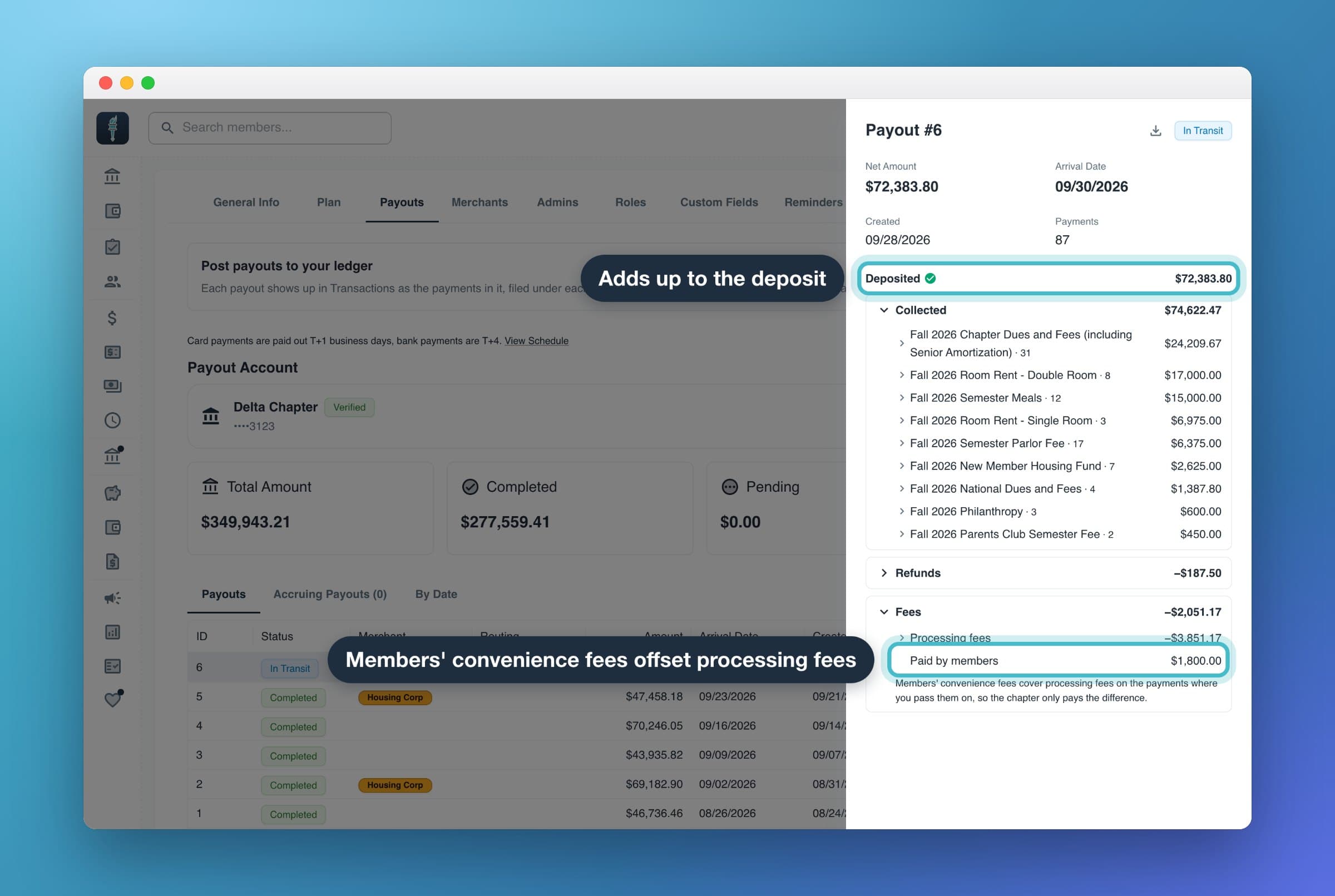
At the top: Payout # (the payout's number), Net Amount (what was deposited), Arrival Date (TBD until the payout is approved), Created and the number of Payments. If the payout belongs to a separate merchant, such as a housing corporation, the merchant's name shows next to Payout #. See Payouts to a separate merchant.
Below that, Deposited shows the total of all the sections. A green check means the sections add up exactly to the payout. For a negative payout, this reads Withdrawal: that amount was taken from your bank account instead of deposited.
The breakdown sections
Each section shows its total, and money taken out of the payout shows with a minus sign. Sections only appear when the payout has something in them.
| Section | What's in it |
|---|---|
| Collected | What members paid, one line per charge type, then one line per store product. Store sales is a store order without item detail; Unattributed is a payment we couldn't match to a charge. |
| Refunds | Refunds you gave, by charge type. |
| ACH returns & disputes | Bank payments that bounced (· ACH return), card payments that were disputed (· disputed) and disputes you won (· dispute won back), each after the charge type's name. |
| Fees | Processing fees, Paid by members, ACH return fees, Chargeback fees and Other fees. |
| Other | Anything else, such as Returned payout re-sent when a payout your bank sent back is sent again. |
Next to each line outside Fees is the number of payments in it.
How fees are shown
Processing fees is what the payment processor charged. Paid by members is the convenience fees members paid on top of their dues, shown as a plus because it covers those fees. If your chapter passes fees on to members, the two lines nearly cancel out and the chapter pays only the difference.
Opening Processing fees lists only the payments where the chapter paid part of the fee. If members covered every fee, it says Members covered every processing fee. A row named Rounding / unlinked fees is fee rounding or a fee not tied to one payment.
When a refund, ACH return or dispute gives back a member's convenience fee, it shows as its own line: Convenience fees refunded, Convenience fees returned or Convenience fees won back. That money is a real cost to the chapter.
Download the payout detail
Select the download icon (Download CSV) at the top of the payout details. You'll get a file named payout-<number>-detail.csv with one row per payment per line: Date, Section, Type, Charge type / product / line, Payment paid for, Payer, Amount and IDs for matching. Downloading needs the View Transactions permission.
Payouts without a breakdown
A payout that's still accruing, or that hasn't been itemized yet, shows Amount by charge type and a Payments list instead. Its Total can differ from the net amount because of processing fees, chargebacks or ACH returns.
Routing
If your chapter routes payouts on to other Crowded accounts, a Routing section shows where the money went and whether each transfer is Pending, Moving, Moved, Failed or Needs attention.
The payout email
When a payout is on its way, chapter admins get the email MyGreek Payout On Its Way with the same sections. The email shows processing fees and what members paid toward them as one line. When that comes to less than $1 either way, it's labeled Fee rounding. Its View payout details button opens the Payouts tab. See How payouts work.
Common questions
Why is my payout less than what members paid?
Processing fees, refunds, ACH returns and disputes come out of the payout before it reaches you. The Refunds, ACH returns & disputes and Fees sections show each one, and Collected shows what members paid. A green check next to Deposited means the sections add up exactly to the deposit.
Can I see a payout's breakdown in the mobile app?
No. The mobile app shows only the Pending Payout card on its Payments tab. Open payouts in the web app, which also works in a phone's browser.
Why can't I see member names?
Seeing who paid needs the View Transactions permission. Ask a chapter admin to add it to your role.
Why don't I see payments for some charge types?
If a charge type pays out to a separate merchant, its payments are in that merchant's payouts, not the chapter's. Check the Merchant column on the Payouts tab.