
Bill members
Charge one member, a group or your whole chapter, what members and parents receive, and how to undo a mistake.
Officers with the Bill members permission can charge members on the web, from Charges, a charge type, a group or Balances. Every charge is made from a charge type, so set up what you charge first. You can also charge members in the mobile app.
Ways to bill
| To charge | Use |
|---|---|
| Any mix of members, groups or the whole chapter | Charge Members on Charges, on Balances, or on a charge type's page |
| Everyone in one group | + Charge on the group's page |
| Several groups, each a different amount | Multi-Group Charge on Charges |
| One member | Charge on the member's Charges tab |
| New members as they join | Auto-assign charges on a join link |
Charge members in bulk
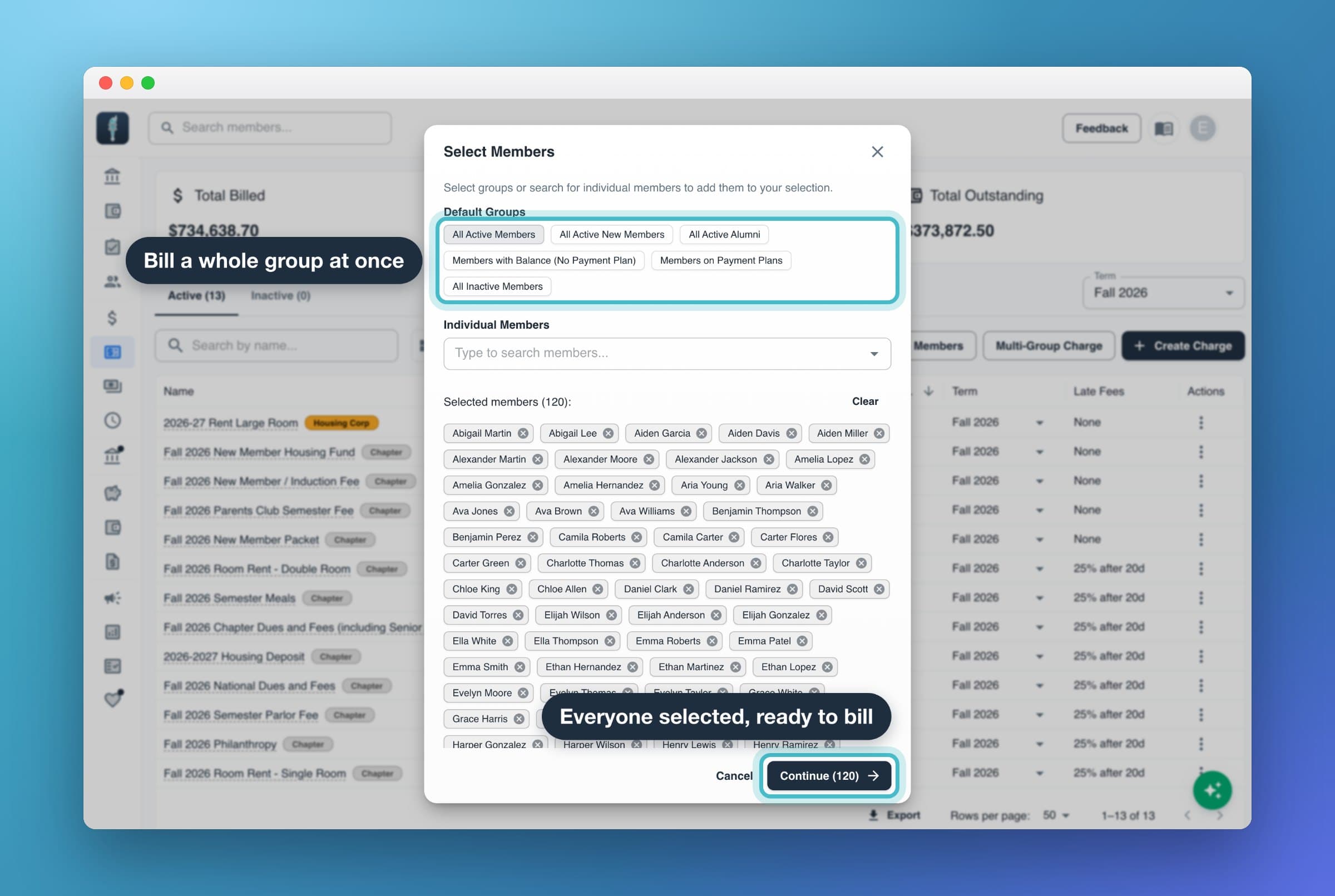
- In Charges, select Charge Members. The same button is on Balances and on each charge type's page.
- In Select Members, pick who to charge. You can combine these:
- Default Groups: All Active Members, All Active New Members, All Active Alumni, Members with Balance (No Payment Plan), Members on Payment Plans or All Inactive Members.
- Custom Groups: any group you've made.
- Individual Members: search by name.
- Select Continue.
- Under Charges, pick one or more charge types. If you started from a charge type's page, it's already picked.
- Check the amount and Due Date for each charge type. They're filled in from the charge type's default amount and due date, or 30 days from today if it has no default due date. The due date can't be in the past.
- Add a Note (optional). It's saved on each charge.
- Slide Slide to charge to finish.
Each member gets one charge per charge type you picked. If you pick several charge types, you see a Total per member, and each member gets one combined bill instead of one per charge.
Archived members can't be picked. Members in collections are skipped, and you see a message saying how many "were skipped because they are in collections."
Charge a group
In Members, select the Groups tab, open the group and select + Charge. Everyone in the group at that moment is selected. Then pick the charge types, amounts and due dates as in Charge members in bulk. See Organize members into groups.
Charge several groups different amounts (Multi-Group Charge)
Use Multi-Group Charge when groups owe different amounts for the same charge type, for example new members and actives.
- In Charges, select Multi-Group Charge.
- Pick the charge type and the Due Date.
- Under Groups and Amounts, pick a Group and enter its amount. Select Add Group for each additional group.
- Add a Note (optional), then slide Slide to charge.
A member who's in two of the groups you pick gets both charges. Members in collections are skipped.
Charge one member
You need the Add Manual Transactions permission to see these buttons on a member's page.
- Open the member's page and select the Charges tab.
- Select Charge.
- Pick the charge type. The amount and due date fill in from its defaults. Change them if you need to.
- Add a Note (optional), then slide Slide to add charge.
Charge is turned off for members in collections ("Cannot charge a member in collections").
To add more to a charge the member already has, open that charge and select Charge. The amount you enter is added to that charge instead of creating a new one.
Bill new members automatically with a join link
A join link can bill people as they join. When you create or edit a join link, pick charge types under Auto-assign charges. Each person who joins with the link gets a charge for each one, at the charge type's default amount and due date. If the link doesn't auto-approve, the charges are added when you approve the request. See Share a join link.
What happens next
As soon as you charge a member, MyGreek sends:
- An email to the member: "You have been billed [total]". It lists each charge with its amount and due date, shows their total balance, and links to pay. A new charge comes with an invoice PDF attached. If you billed several charge types at once, one email covers all of them.
- An email to each parent contact: "Your student [name] has been billed [total]", with the same details.
- A text to the member, if they have a phone number, with the charges, their balance and their pay link at pay.mygreek.us.
- A mobile app notification, if the member uses the app.
If the charge type has an early pay discount, the email and text say "Pay in full by [date] to save [amount]."
Archived members aren't sent anything. If the member has account credit, it's used on the new charge right away, and they also get a "You have been credited" email. See Account credit.
The charge shows on the member's My Balance page, in the mobile app, and at pay.mygreek.us, where parents pay. If your chapter has reminders and late fees turned on, they follow the charge's due date. See Remind members to pay and Set up late fees.
Add a contact line to invoices and billing emails
The invoice contact line is a sentence such as "Questions about your bill? Please contact Alex Smith at (555) 555-1234 or alex@example.com." It's added to invoices, statements and the "You have been billed" email. Chapter admins set it on the web.
- Open the account menu and select My Chapter.
- Select the Invoices tab.
- Turn on Show a contact line on invoices and billing emails.
- Edit the sentence. Use the Insert chips (First name, Last name, Phone, Email) to add your primary admin's details, and check the Preview.
- Select Save.
The details come from your chapter's primary admin. If they have no phone or email on file, or your chapter has no active primary admin, the line is left off, and the Invoices tab tells you why. See Add or remove an admin.
Undo a charge sent by mistake
Archive the charge to remove it completely:
- One charge: open the charge from the member's Charges tab or the charge type's list, and select Archive.
- Several charges: on the charge type's page, check the charges and select Archive.
Archiving takes what's still owed on the charge off the member's balance and hides the charge from all views. You can't restore an archived charge in the app, and the member isn't notified.
Archiving a charge doesn't send back anything the member already paid on it. To return money, refund the payment.
Other fixes:
- The amount was too high: keep the charge and lower it with Adjust. See Make an adjustment.
- The due date was wrong: on the charge type's page, check the charges and select Due Date.
You can't archive an unpaid charge for a member in collections. See Send a member to collections.
Common questions
A member says they never got the bill. What do I check?
- Open the member's page and check their email and phone (Actions → Edit Contact Info). Bills go to what's on file.
- Check that the charge is on their Charges tab. Members in collections are skipped when you bill, and archived members aren't sent anything.
- Ask them to check their spam folder for "You have been billed".
- Send it yourself: open the charge, select the Download invoice icon next to its name, and email the PDF to them. Members can always see their charges on My Balance, and parents at pay.mygreek.us.
If many members didn't get their bills, email support@mygreek.us with the charge type and the date you billed.
Can I bill a member with a due date that already passed?
Not from the billing dialogs: the due date can't be earlier than today. You can set an earlier date afterward with Due Date on the charge type's page. If the charge type has late fees, a past due date can add a late fee at the next 12 AM. See Set up late fees.
Why did a member get two charges from a Multi-Group Charge?
They're in two of the groups you picked, and each group's charge is made separately. Archive the extra one.
Do parents get the bill?
Yes. Each parent contact on the member's Secondary Contacts tab gets the email. Texts and app notifications go only to the member. See Add parent contacts.